



These days, it’s more important than ever to keep your data secure. It can be frustrating to lose company information, work files, or family photos. This is where the 3-2-1 Backup Rule comes into play. It’s a no-brainer for always protecting your files.
The idea is simple: have three copies of everything necessary. You should keep two copies (stored in different locations, such as one on your computer and another on an external hard drive) and maintain a third offsite, such as in the cloud. That way, should something unexpected occur (a hardware failure, for instance, or a stolen device, or even a flood), your data won’t be compromised.
In this article, you will learn how to implement the 3-2-1 Backup Rule to safeguard your files and keep them secure.
The Three Parts of the 3-2-1 Backup Rule
3 Copies of Your Data
Having three copies of your data, including the original file and two additional backups, is the first component of the 3-2-1 rule. Keeping multiple copies of your data helps for security purposes. If one copy gets damaged or lost, you have two others to fall back on. This form of redundancy is important in information security.
2 Copies in Different Locations
The next step is straightforward: save two copies of your data in separate locations. One on your device and another stored elsewhere (on an external hard drive, a USB flash drive, or in a different room or building). That way, if the worst happens — a fire, theft, or your device is damaged — you still have a backup to fall back on.
1 Copy Offsite
The final part of the 3-2-1 rule is ensuring that one copy of your data is stored off-site. This could be in the cloud or at a trusted friend’s house. The idea is that if a disaster (like a fire, flood, or theft) affects both of your local copies, you’ll still have your offsite backup safe and sound.
Why the 3-2-1 Rule Works So Well
Protection Against Data Loss
The 3-2-1 rule offers robust protection against data loss. Even if one or two copies are damaged, you’ll still have access to your files. Think of it like insurance for your data—ensuring that no matter what happens, you’re covered.
Simple to Understand and Implement
The simplicity of the 3-2-1 backup rule is among its best features. To follow it, you don’t have to be a technology expert. Maintaining three copies—two offshore and two in separate locations—will help you protect your data clearly and understandably.
Flexible and Reliable
Somebody can apply the rule to a wide range of data types, including business documents and personal photographs. The 3-2-1 guideline applies regardless of whether you’re backing up a few files or a whole database. Additionally, you are free to select backup options that best fit your needs, such as external disks or cloud storage.
How to Implement the 3-2-1 Backup Rule
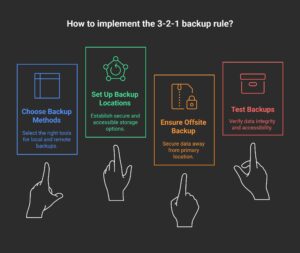
Step 1: Choose Your Backup Methods
External Hard Drives
Now, external hard drives make for great local backups. They offer ample storage, straightforward access, and simple setup. Before you go, you’ll want to make up copies of your essential files, and they’re a particularly ready resource for doing so.
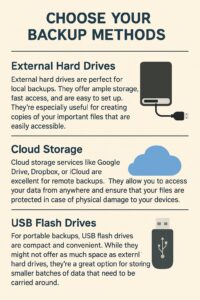
Cloud Storage
Remote backups work best with cloud storage providers like Dropbox, iCloud, and Google Drive. They let you retrieve your data from anywhere, and protect your files if your devices are destroyed.
USB Flash Drives
For portable backups, USB flash drives are compact and convenient. While they might not offer as much space as external hard drives, they’re an excellent option for storing smaller batches of data that need to be carried around.
Step 2: Set Up Backup Locations
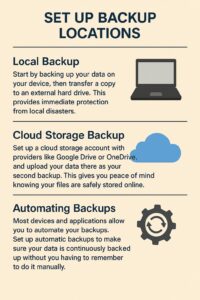
Local Backup
Start by saving your files directly on your device, then create a second copy on an external hard drive. This provides quick protection in the event of a nearby issue, such as a hardware failure or accidental damage.
Cloud Storage Backup
Please create an account with a cloud service, such as Google Drive or OneDrive, and upload your files to it. It’s a simple way to ensure your data is safe, even if your physical devices are lost or damaged. Additionally, you can access your files from any location.
Automating Backups
You don’t have to remember to back things up every time. Most devices and apps allow you to set up automatic backups, ensuring your data remains protected with minimal effort. Once it’s set, you’re covered.
Step 3: Ensure You Have an Offsite Backup
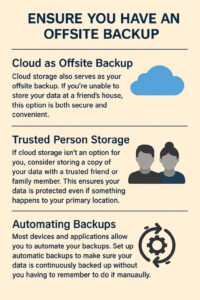
Cloud as Offsite Backup
Cloud storage also serves as your off-site backup. If you’re unable to store your data at a friend’s house, this option is both secure and convenient.
Trusted Person Storage
If cloud storage isn’t an option for you, consider storing a copy of your data with a trusted friend or family member. This ensures your data is protected even if something happens to your primary location.
Automating backups
Automatic backups keep your data protected by saving files on a regular schedule without manual effort. Built-in tools like Windows Backup or Time Machine, and apps like Backblaze or Acronis, ensure your files are continuously updated and secure—giving you peace of mind with zero hassle.
Step 4: Test Your Backups
Testing Backups Regularly
It’s crucial to test your backups regularly. Make sure you can access the data and restore files when needed. Try retrieving a file from your backup to ensure it’s not corrupted or inaccessible.
Common Mistakes People Make with Backups
-
Only Saving One Copy
Relying on just one copy of your data is a significant risk. Always follow the 3-2-1 rule to ensure your files are adequately protected. -
Keeping All Backups in One Place
Never store all your backups in the exact location. If that location is damaged or compromised, you’ll lose everything. Always follow the “two locations” rule. -
Forgetting to Update Backups
Backup data needs to be updated regularly. Don’t forget to back up new files or update old backups to ensure they’re current. -
Not Testing Backups
If you never test your backups, you can’t be sure they’ll work when you need them. Regular testing ensures your backups are adequate.
Tools That Make Backups Easy
There are a variety of free and paid tools to help simplify the backup process:
Google Drive: A reliable, free cloud storage service with ample space for documents, photos, and small files.
Dropbox: A popular option with easy file sharing and synchronization features.
Backblaze: A paid service known for its automated cloud backups and easy recovery options.
Acronis: A comprehensive backup solution with both local and cloud storage options for businesses and personal use.
These tools provide an intuitive interface, robust security features, and reliable storage solutions.
Special Tips for Small Business Owners
Small business owners have unique backup needs. Here are a few tips to ensure your business data is protected:
-
Use Automated Backup Tools
Save time and reduce human error by automating your backups. This ensures you never forget to back up your important business files. -
Encrypt Sensitive Data
Always encrypt sensitive business data to protect it from unauthorized access, especially when stored in the cloud. -
Train Your Team on Backup Basics
Ensure your team understands the importance of backing up their work and knows how to do it effectively. -
Keep One Backup Offsite or in the Cloud
To protect against local disasters, always store a backup off-site or in the cloud.
FAQ
1. Why is the 3-2-1 Backup Rule so important?
The 3-2-1 Backup Rule is basically your data’s superhero. Imagine having three copies of your files—two on different devices and one safely tucked away offsite (like in the cloud). If something goes wrong, such as your laptop crashing, your house catching fire (yikes), or a random tech meltdown, you have backups everywhere to save the day. It’s like having a spare tire in your car—just in case you hit a bump!
2. Can I just use one cloud backup for the 3-2-1 rule?
Yes, cloud-facilitating convenience. However, a cloud backup alone is not enough for the 3-2-1 rule. You need to store a copy on your device, on the second external drive (think of it as a backup), and then your final copy in the cloud. It is like ensuring that your data is wearing a seatbelt, helmets, and knee pads, just to be extra safe!
3. What types of storage can I use for the two local backups?
There are plenty of options for your two local backups! If you want to try something new, you can use a network drive, an external hard drive, or even a USB flash drive. The goal here is to keep one copy on your device and one in a completely different place. It’s like hiding a spare key—one in your house and one in your neighbor’s place, just in case you lock yourself out.
4. How often should I back up my data with the 3-2-1 rule?
How often you back up depends on how much you value your data (and how much new content you add). If you’re only storing photos and documents casually, a weekly or monthly backup may suffice. However, if you’re working on something important or have numerous daily changes, set up automatic backups to do the work for you. Your future self will thank you—especially when you realize you didn’t lose that vital presentation from last week!
5. What happens if I don’t follow the 3-2-1 Backup Rule?
If you do not follow the 3-2-1 rule, you are basically playing Russian Rule with your data. If something goes wrong (and, trust me, it will happen – technology has its own mind), you can lose everything. Think about the 3-2-1 rules as your data life insurance policy-until you don’t really need it. It is not fun to think, but you will be happy that you have this when a disaster strikes. Better than sorry.
Conclusion
The 3-2-1 Backup Rule is a simple but powerful strategy to ensure your data remains safe, secure, and easily recoverable. By maintaining three copies of your data, with two in different locations and one offsite, you drastically reduce the chances of losing your important files. Follow this strategy to protect yourself from accidents, hardware failure, or disasters—giving you peace of mind that your data is always secure.